Two-Step Verification adds an extra layer of security to your Finzite account. When verification is required at sign-in, you'll confirm it's you using your chosen method.
1. Sign in to Finzite
- Open app.finzite.io.
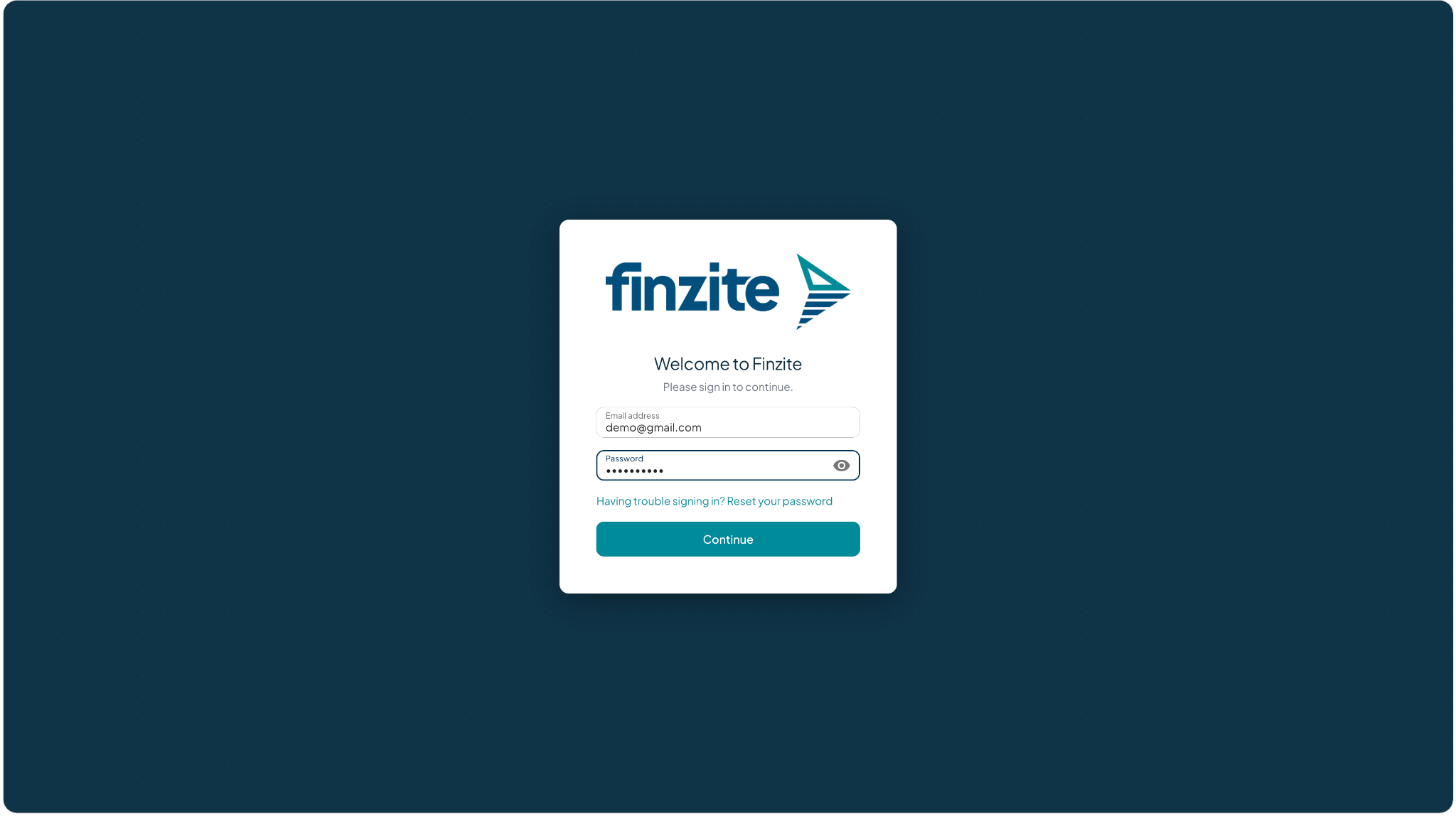
- Enter your email address and password, then select Continue.
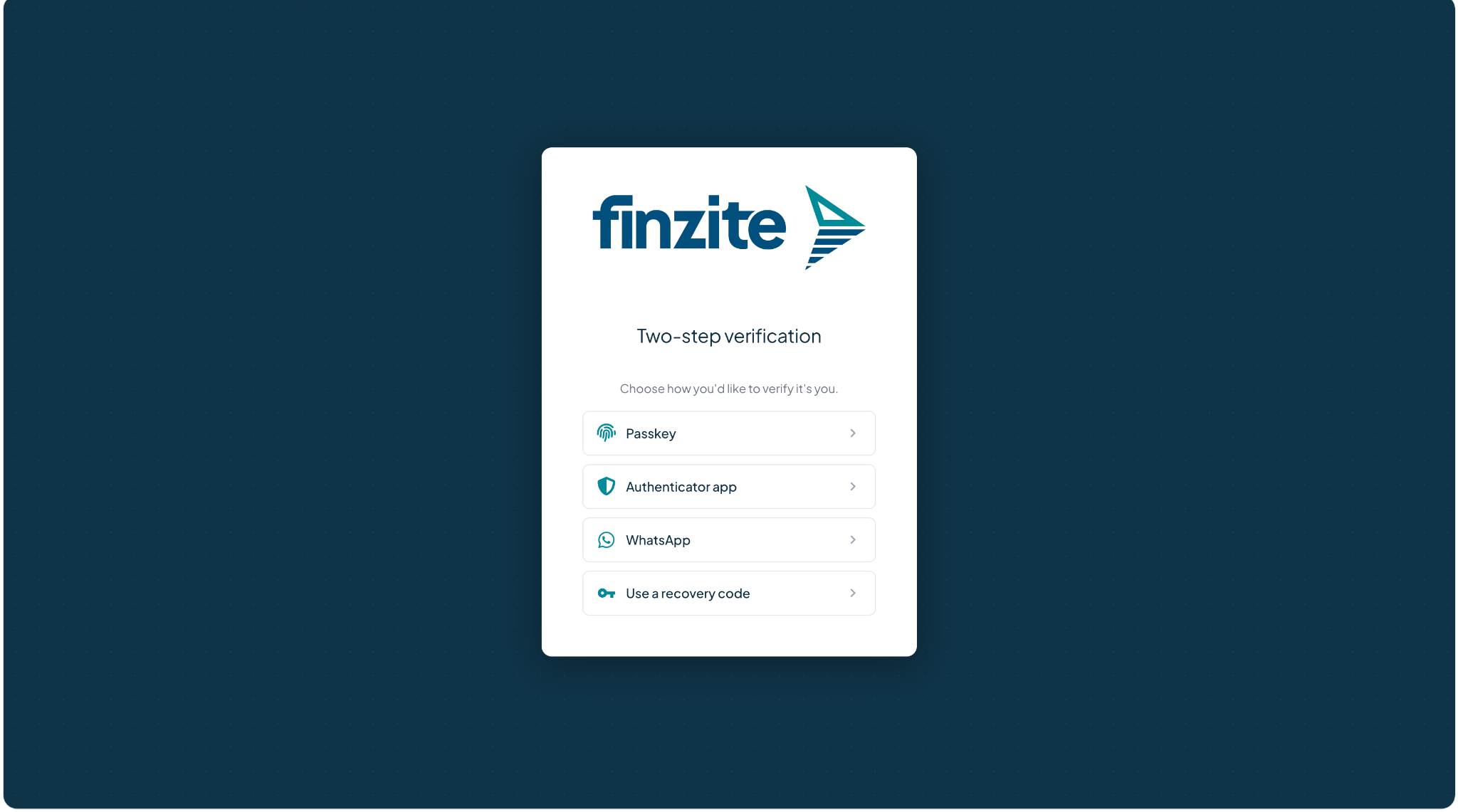
- If this is your first time configuring 2FA, follow the prompt to set up a verification method. If you have already set it up, you will be prompted to verify your identity.
Initial setup — choose your preferred verification method:
2. Verify your identity when signing in
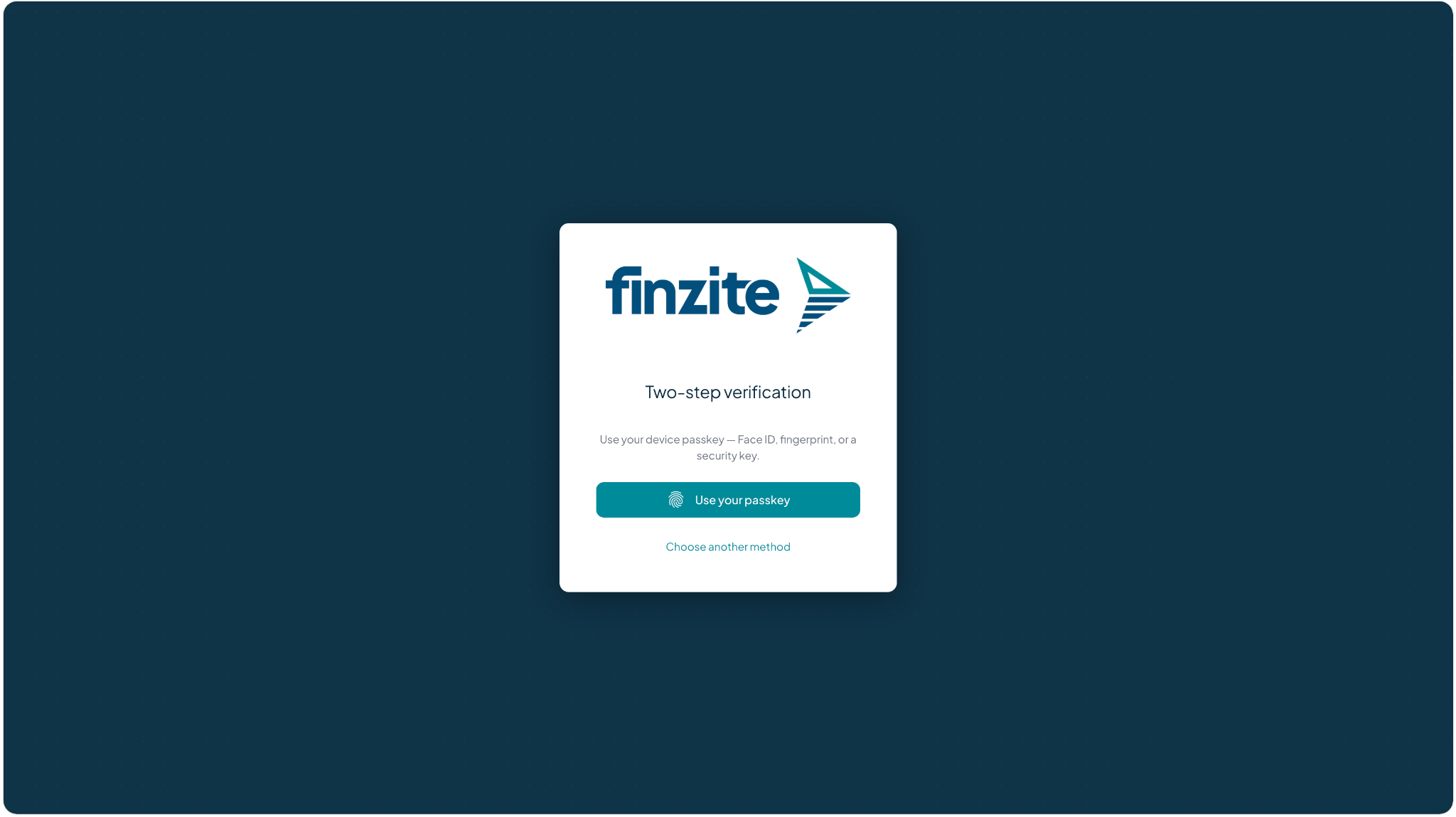
After you have set up 2FA, Finzite asks you to verify your identity when required. If you use a passkey, select Use your passkey. To use another configured option, select Choose another method.
3. Set up your preferred method
Passkey (recommended)
Select Passkey and follow the prompts from your device or browser. Depending on your device, you may confirm with a fingerprint, facial recognition, or device PIN.
Authenticator app
Select Authenticator app, follow the instructions to link your authenticator app, then enter the code generated by the app when requested.
Select WhatsApp, follow the setup prompts, and enter the verification code delivered through WhatsApp when requested.
4. Manage or add verification methods later
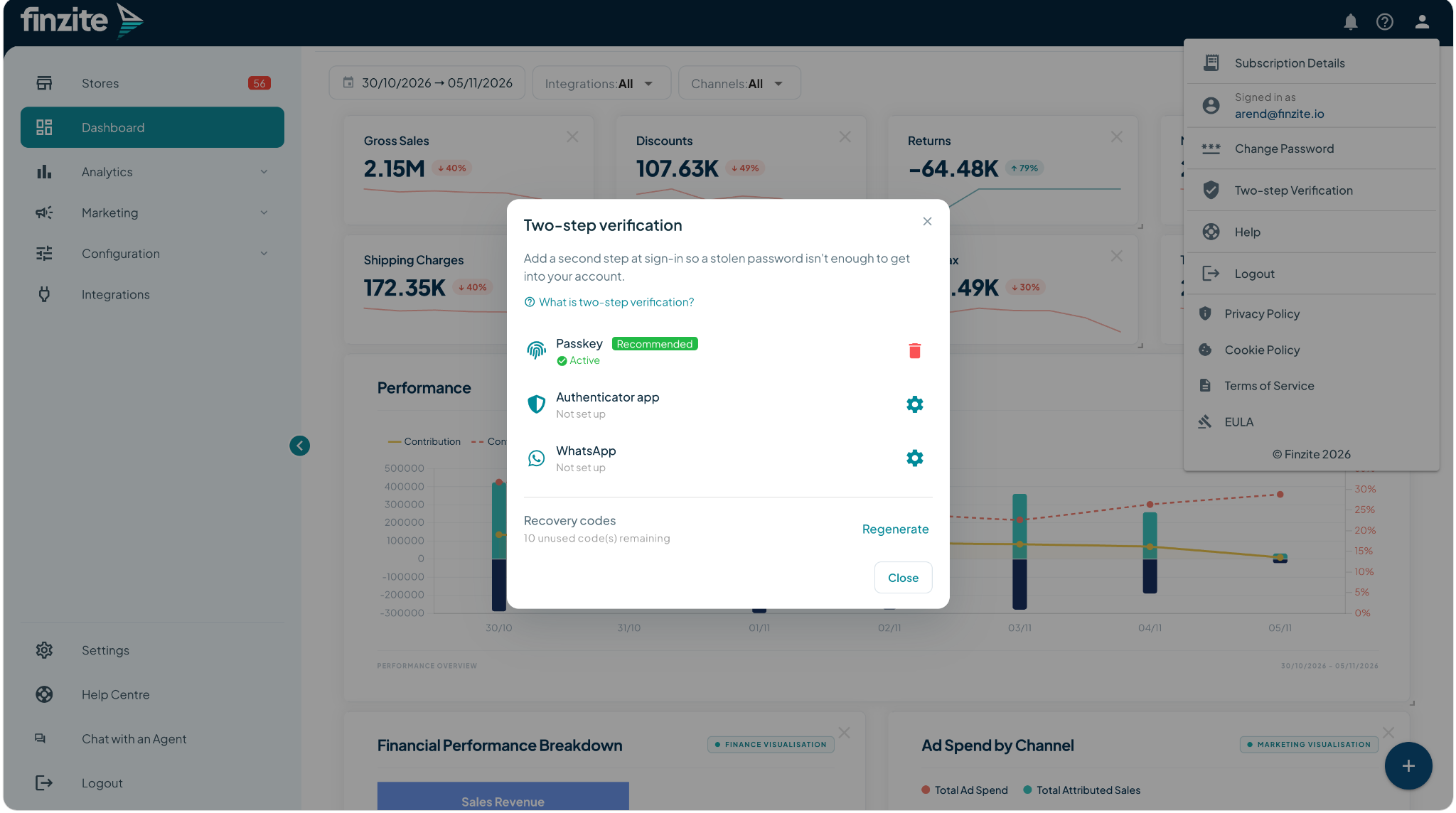
After completing the initial setup, you can return to your security settings to manage your methods:
- Sign in to Finzite.
- Click your profile icon in the top-right corner.
- Choose Two-step Verification.
- View active methods, add another method, or manage existing methods.
The profile menu and Two-step verification settings:
5. Keep your recovery codes safe
Recovery codes can be used as a backup when you can't access your usual verification method. In Two-step Verification settings, find the Recovery codes section. Store your codes in a secure location and never share them. If you regenerate codes, previously issued codes may no longer work.
Need help?
Contact help@finzite.io or select Chat with an Agent in Finzite.
Finzite · Finance, finally clear.
Was this article helpful?
That’s Great!
Thank you for your feedback
Sorry! We couldn't be helpful
Thank you for your feedback
Feedback sent
We appreciate your effort and will try to fix the article