What is location filtering?
Location filtering allows you to control and analyse performance data for specific store locations within your business.
How do I set up location filtering?
Location filtering is a two-step process:
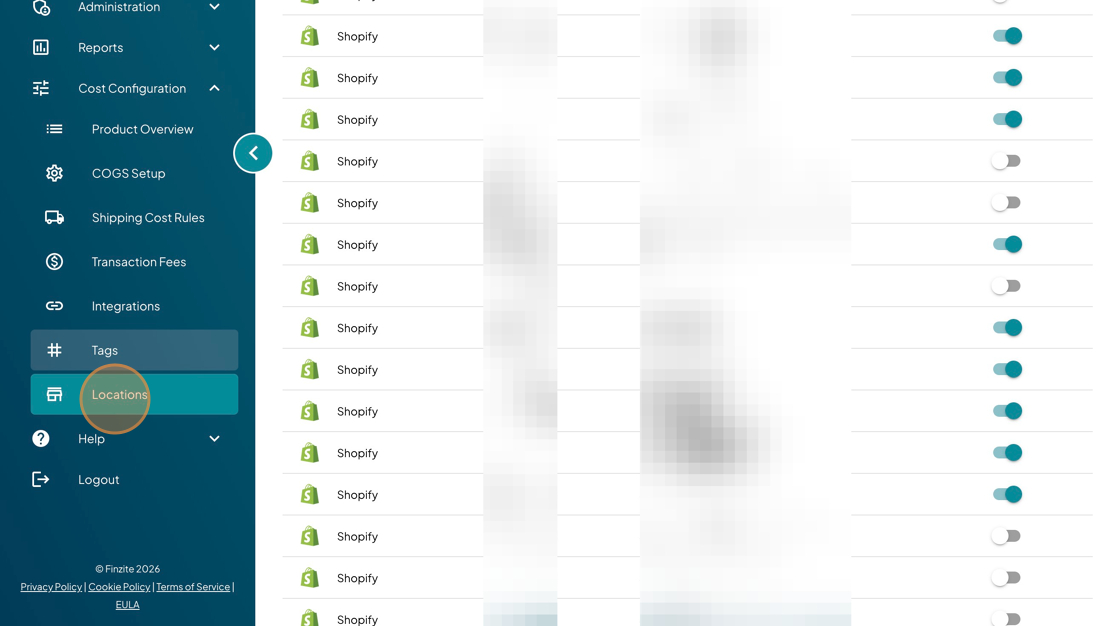
Step 1: Enable locations in Cost Configuration
- Go to Cost Configuration → Locations
- Toggle on the locations you want to include in your reporting
- These selected locations will now be available across the platform
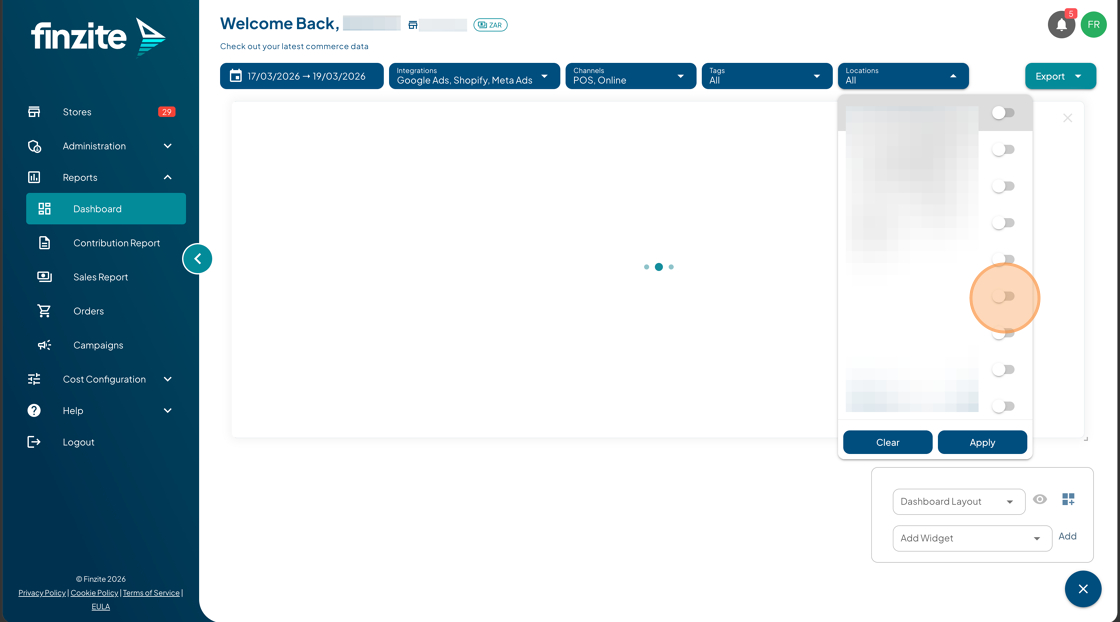
Step 2: Filter locations on the dashboard
- Go to your Dashboard
- Click the Locations filter
- Select the specific locations you want to view
- Click Apply
Why is this a two-step process?
This ensures you first define which locations are relevant to your business, and then dynamically filter between them in your reports.
Why am I not seeing certain locations on my dashboard?
- The location may not be enabled in Cost Configuration → Locations
- The location may not exist in your connected store
- Your current filters may be excluding it
Why is my data not changing when I select locations?
- Ensure you clicked Apply after selecting locations
- Check your date range
- Confirm your integrations support location-level data
What should I do if the issue is still not resolved?
If the issue continues after completing the steps above, please contact our support team:
Visit help.finzite.io
Or submit a ticket via our Customer Support Portal
Please include:
- Your store name
- The affected integration
- A description of the issue
- Screenshots (if possible)
Our team will assist you as quickly as possible.
Was this article helpful?
That’s Great!
Thank you for your feedback
Sorry! We couldn't be helpful
Thank you for your feedback
Feedback sent
We appreciate your effort and will try to fix the article