Use the Recalculate Transaction Fees feature to update transaction fee calculations on historical orders using the payment processor and fee rate you select.
Before you start: Make sure the payment processor and transaction fee rate you want to apply are correct before recalculating historical orders.
Step 1 — Open Transaction & Platform Fees
- Open Configuration from the left-hand menu.
- Select Transaction & Platform Fees.
- Click Recalculate Transaction Fees.
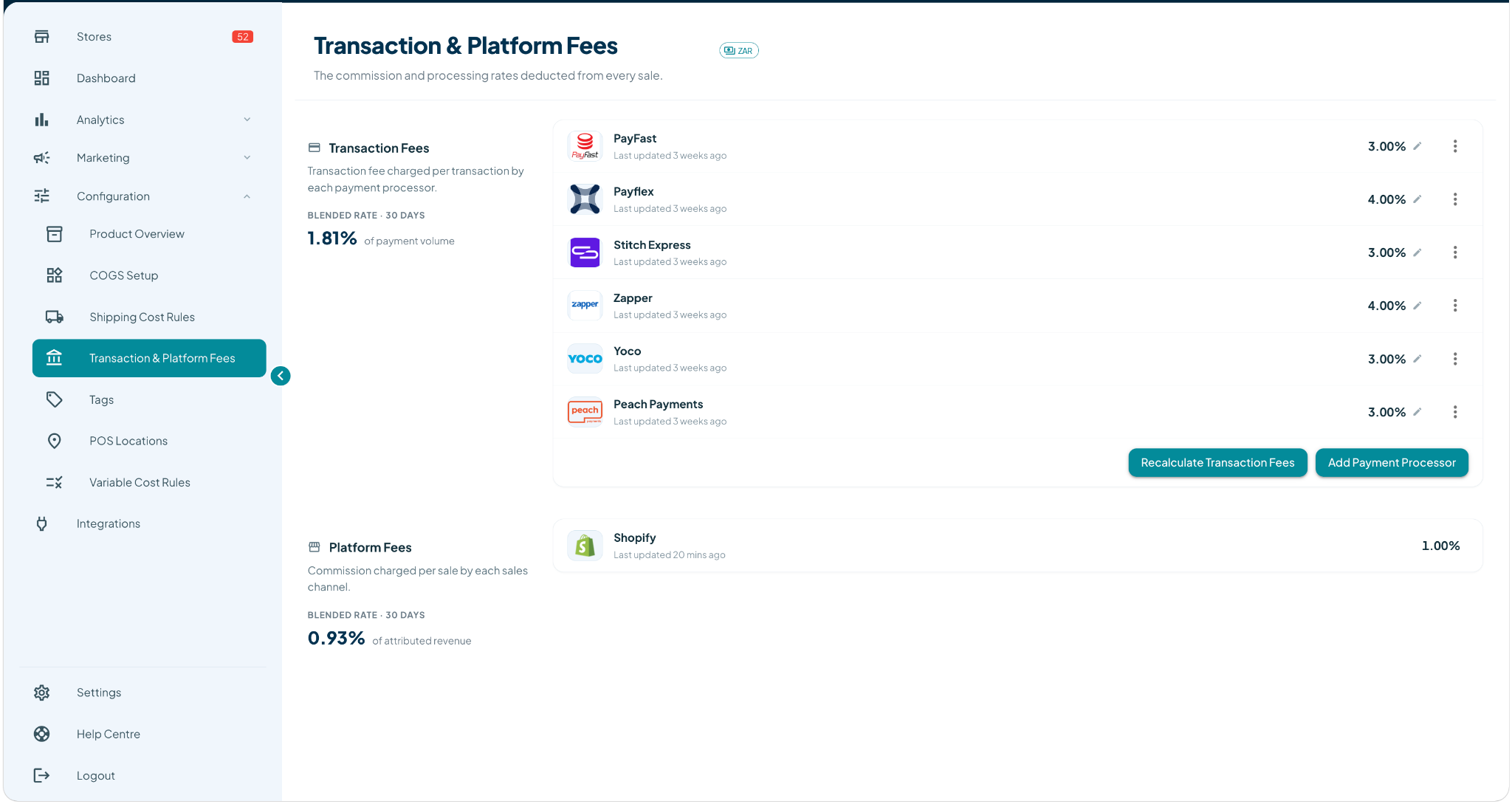
Transaction & Platform Fees page with the Recalculate Transaction Fees action.
Step 2 — Select the payment processor
- In the recalculation window, use Add payment processor to select the payment processor you want to recalculate.
- The available processors shown in the interface include PayFast, Payflex, Stitch Express, Zapper, Yoco and Peach Payments.
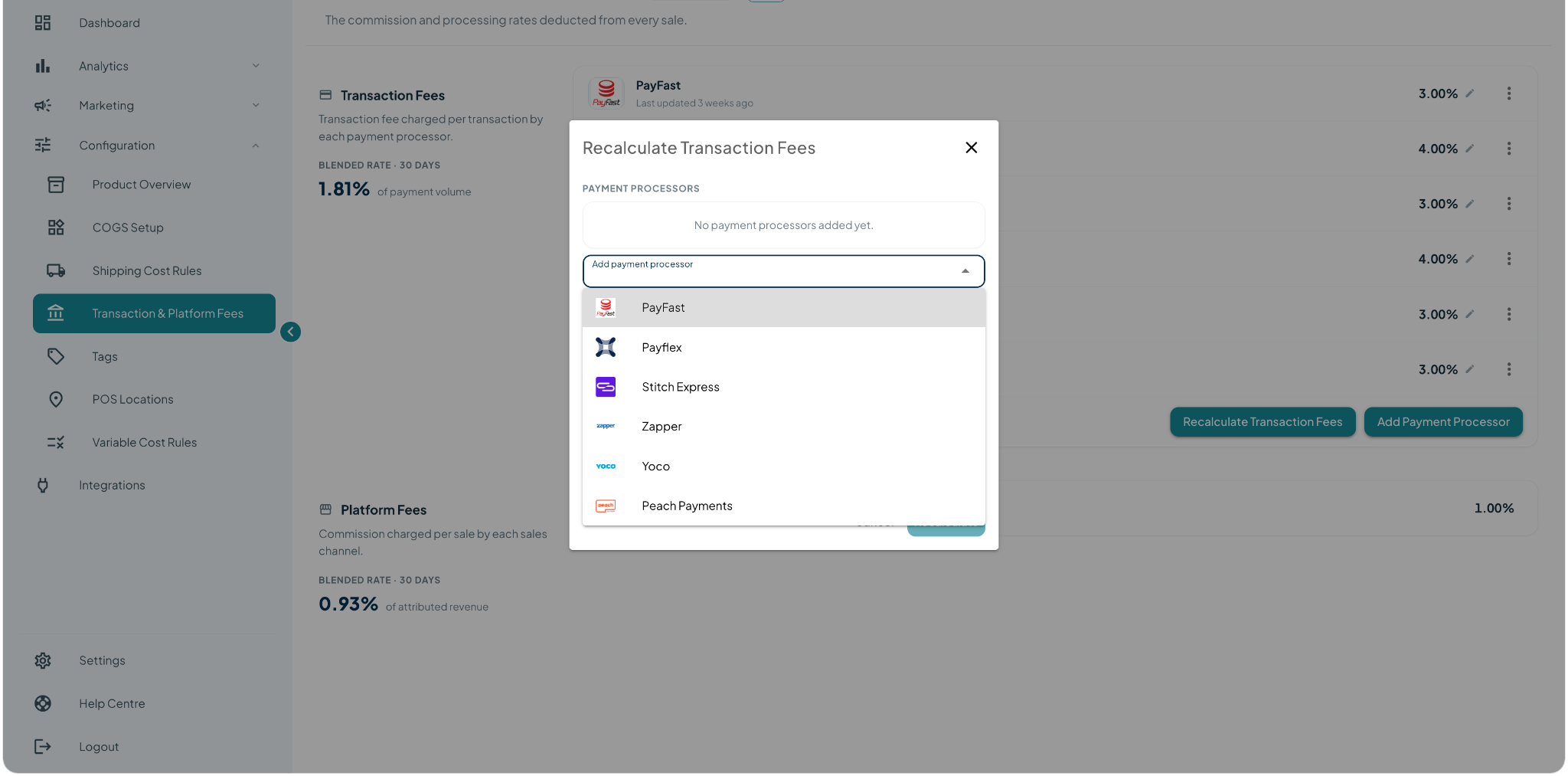
Select the payment processor to include in the recalculation.
Step 3 — Confirm the fee rate and date range
- Confirm the transaction fee percentage for the selected processor.
- Select the date range for the historical orders you want to recalculate.
- Review the selected processor, rate and date range, then click Recalculate.
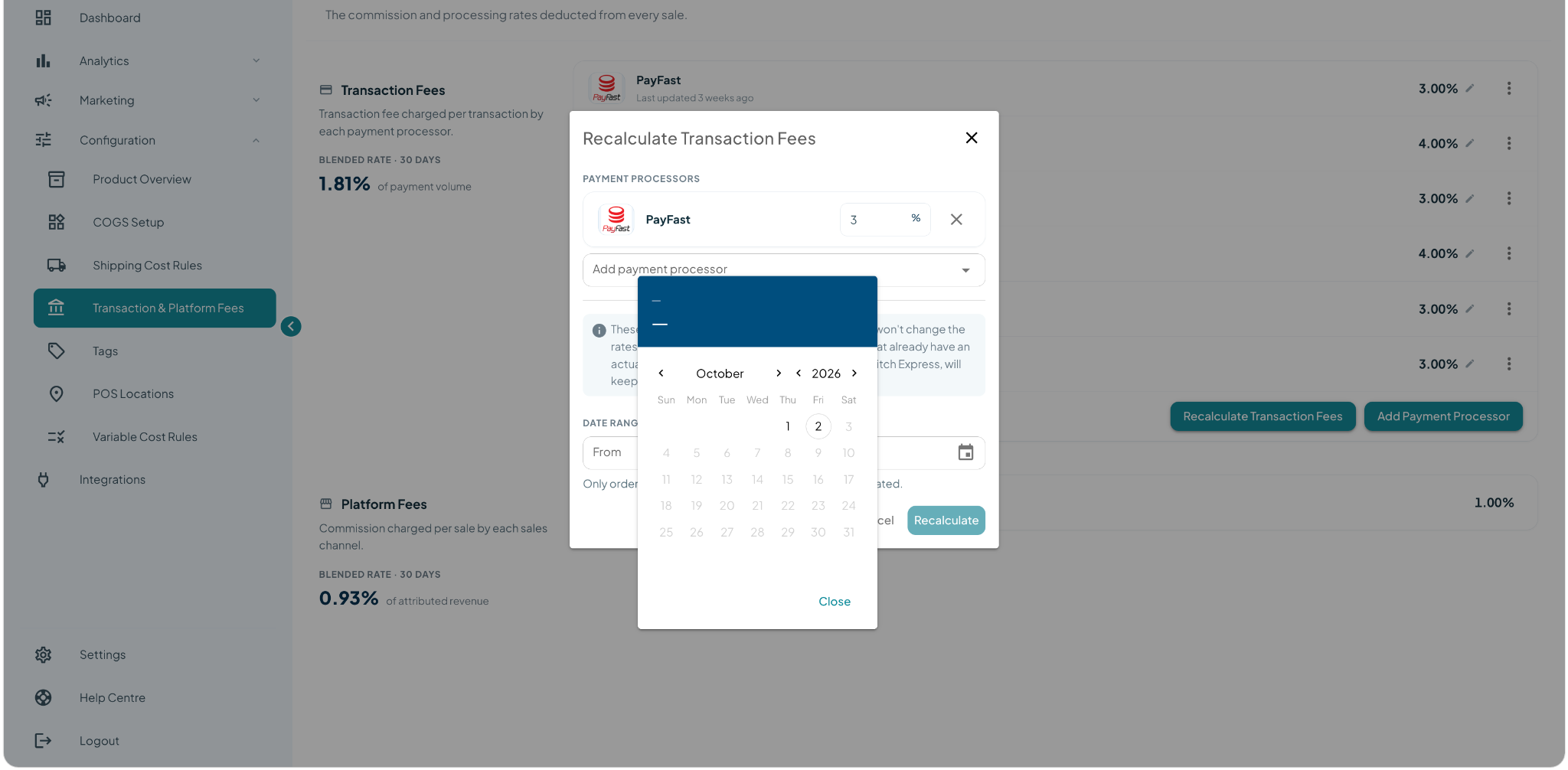
Review the selected processor and rate, then choose the date range for the recalculation.
What the recalculation is for
Historical orders
Use the feature when historical orders need their transaction fee calculations updated.
Updated fee settings
Useful when a processor or fee rate was configured or changed after historical orders were already imported.
Selected scope
Choose the relevant payment processor and date range before running the recalculation.
Review before running
Check the selected processor, percentage and dates carefully before confirming the recalculation.
Troubleshooting
If the recalculated fees do not look correct, first check the selected payment processor, configured transaction fee percentage and date range. Then compare the resulting order-level fees with the expected fee configuration.
Was this article helpful?
That’s Great!
Thank you for your feedback
Sorry! We couldn't be helpful
Thank you for your feedback
Feedback sent
We appreciate your effort and will try to fix the article